Firestore
- Overview
- Firestore Explorer
- Videos
- Using Firestore as a List data source
- Videos: List control with Firestore
- Client-side execution features
- Securing client-side Firestore usage (Firestore Rules)
- Logging into Firestore
- Login component updates (Firebase support)
- Firestore connection strings
- Export users, groups, and memberships to Firebase
Description
Firestore is a NoSQL database that is part of Google’s Firebase product line. Alpha Anywhere includes built-in tooling and UX features for working with Firestore.
Overview
Alpha Anywhere includes built-in tooling and UX features for working with Firestore, including:
- The Firestore Explorer tool for viewing, querying, and editing Firestore data.
- Using Firestore as a List control data source (server-side or client-side execution).
- Logging in using Firebase (including List login methods and a redesigned Login component).
- Creating Firestore connection strings for server-side and client-side usage.
- Guidance for securing client-side Firestore usage using Firestore Rules.
Firestore Explorer
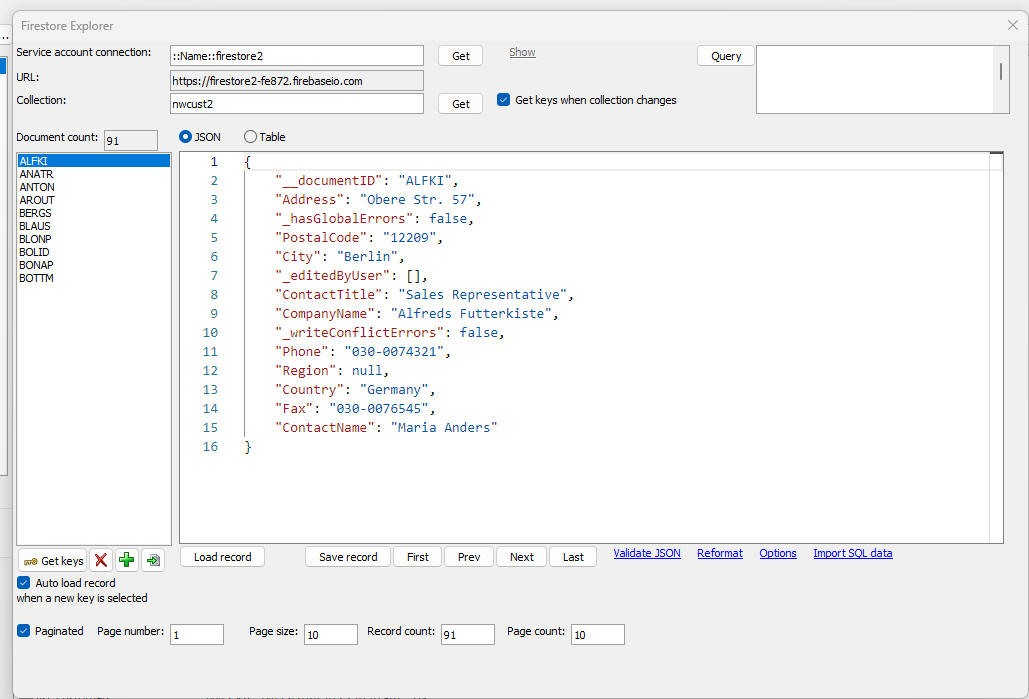
The Firestore Explorer allows you to view, query and update a Firestore database. You can edit, delete and insert documents into a collection, create and delete collections, search for specific documents, and import data from a SQL table into a collection.
To open the Firestore Explorer, select the Firestore Explorer menu command from the Tools menu.
Videos
The videos below demonstrate the Firestore Explorer and Firestore querying.
Using Firestore as a List data source
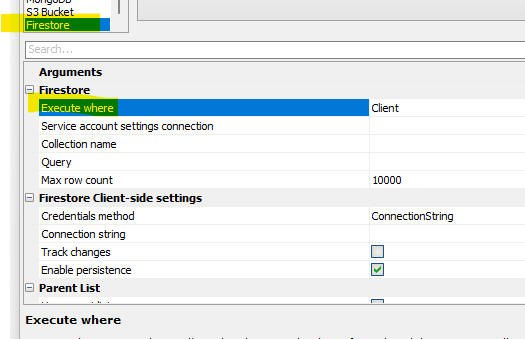
The List control can use Firestore as a data source. When you use Firestore as the data source for a List, you must set the Execute where property to either Server or Client.
- Server: The List communicates with the Alpha Anywhere server, and the server communicates with Firestore.
- Client: The List communicates directly with Firestore (the Alpha Anywhere server is not involved).
Videos: List control with Firestore
These videos demonstrate using Firestore as the List control data source for server-side and client-side execution.
- Using Firestore as the List data source - server-side execution
- Using Firestore as the List data source - client-side execution (Video 1)
- Using Firestore as the List data source - client-side execution (Video 2)
- Using Firestore as the List data source - client-side execution (Video 3)
- Using Firestore as the List data source - client-side execution (Video 4)
- Using Firestore as the List data source - client-side execution (Video 5)
- Using Firestore as the List data source - client-side execution (Video 6)
Client-side execution features
The Client option exposes more Firestore features such as offline use and real-time updates.
When Track changes is enabled, updates to Firestore are immediately reflected in the List (no refresh needed), and updates made in the List are immediately reflected in Firestore and in other users’ Lists (assuming they also track changes).
- To enable offline use, check the Enable persistence property.
- To enable real-time updates, check the Track changes property.
Securing client-side Firestore usage (Firestore Rules)
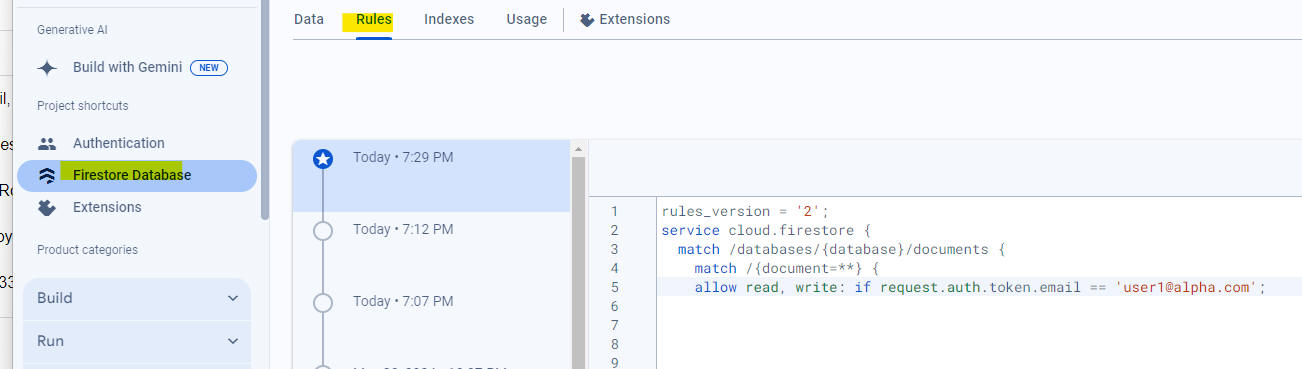
When you use client-side execution, your Firestore credentials are exposed in the browser and can be viewed using developer tools. You should secure your database by defining rules in the Firestore console.
For example, to only allow authenticated users:
allow read, write if
request.auth != null
Or to only allow a specific user email address:
allow read, write:
if request.auth.token.email == 'user1@alpha.com'
The image below shows an example Firestore rule that only allows a specific user to read/write.
Logging into Firestore
You can log into Firestore by creating a Login component (built from a UX) and enabling the Firebase option, or by calling the List object’s .firestoreLogin() method.
Example code to log into Firestore using a List on a UX:
var lObj = {dialog.object}.getControl('LIST1')
// read the userid and password fields
var user = {dialog.object}.getValue('uid')
var pw   = {dialog.object}.getValue('pw')
lObj.firestoreLogin(user,pw)
Using the List’s firestoreLogin() method makes it possible for a UX to contain multiple List controls, each connected to a different Firestore database, each with different rules restricting access.
Login component updates (Firebase support)
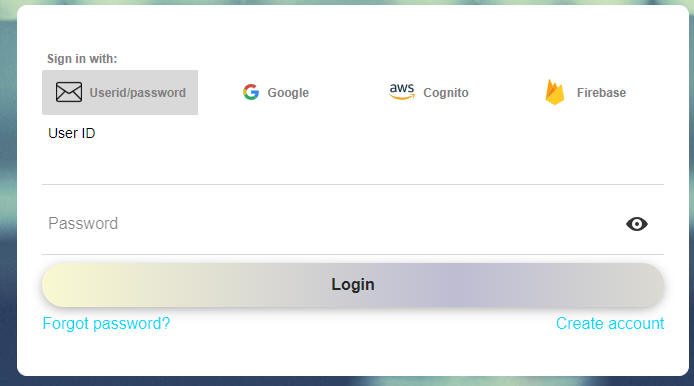
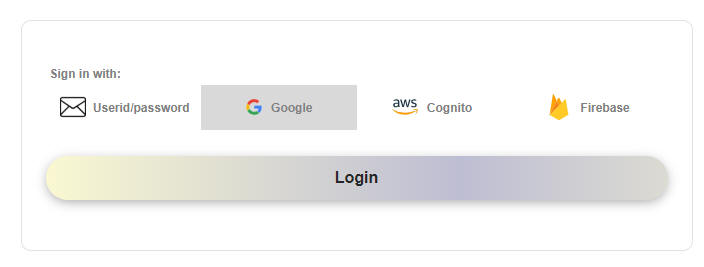
The Login Component (built from a UX) supports login using Firebase. Instead of multiple login buttons (one per provider), there is a single button that logs the user in using the provider selected in the button list above the User ID prompt.
If the only provider is Userid/password, the provider button list is hidden.
When you select the Google or Cognito option, the User ID and Password prompts are hidden because they are not needed.
To enable the Firebase provider, you must have a Firebase account and then in the UX Builder enable Allow login using Firebase and define your Firebase settings.

Firestore connection strings
You can create two different types of Firestore connection strings:
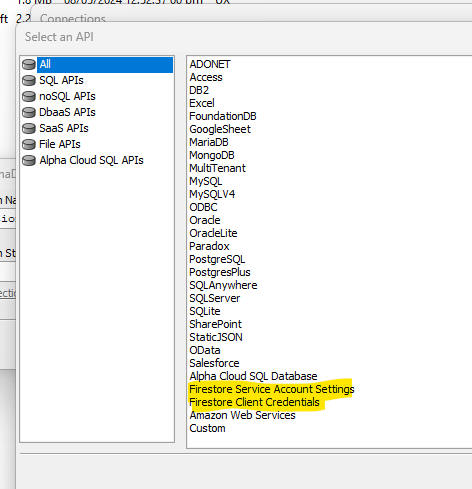
To create a new connection string, select the Tools menu and then AlphaDAO connection strings, then click New. When creating the connection string, select either Firestore Service Account Settings or Firestore Client Credentials.
- Server-side (also called a Service Account).
- Client-side (where the browser communicates directly with Firestore rather than calling the Alpha Anywhere server).

Export users, groups, and memberships to Firebase
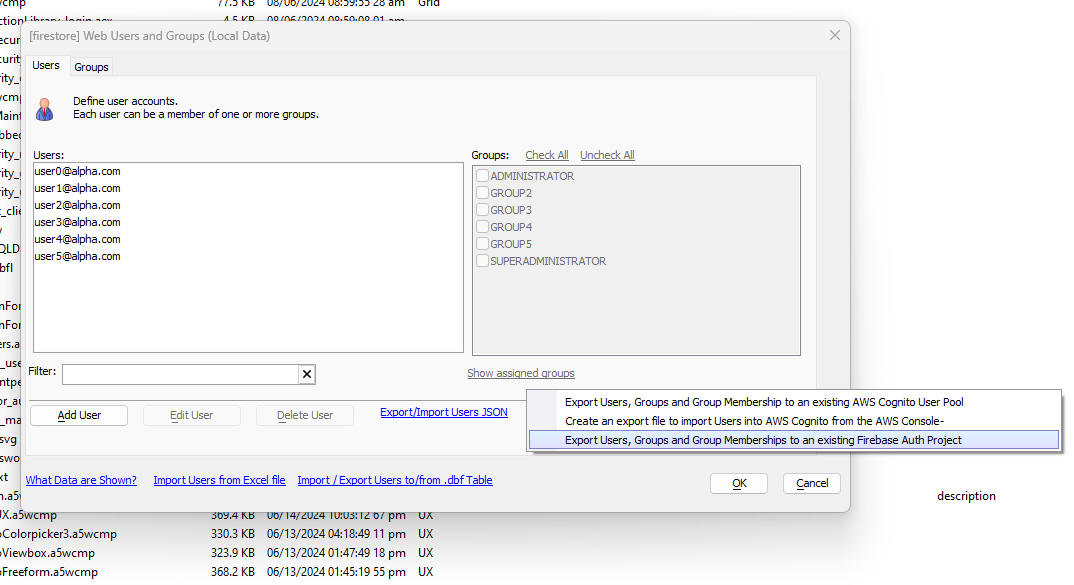
You can export seed users, groups, and group memberships from the Alpha Anywhere Security Framework to Firebase.
Open the Web Users and Groups dialog and click the Other Export hyperlink.

See Also